
Inbox Zero
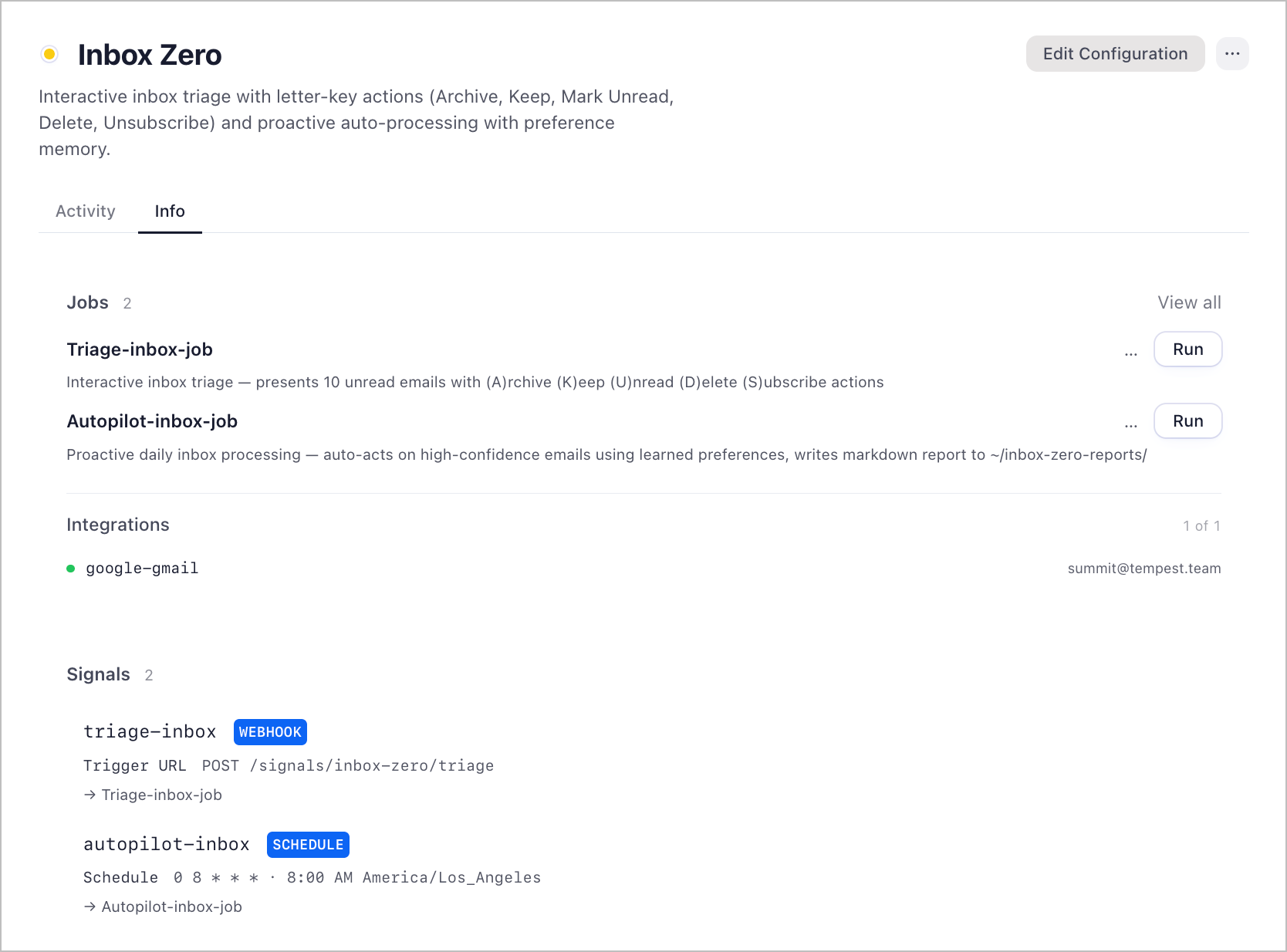
An interactive inbox triage and autopilot workspace. Manually review emails one-by-one with letter-key actions, or let the autopilot run every morning at 8am Pacific — classifying up to 25 unread emails, auto-acting on high-confidence ones, and writing a markdown report so you stay in the loop.
Two modes:
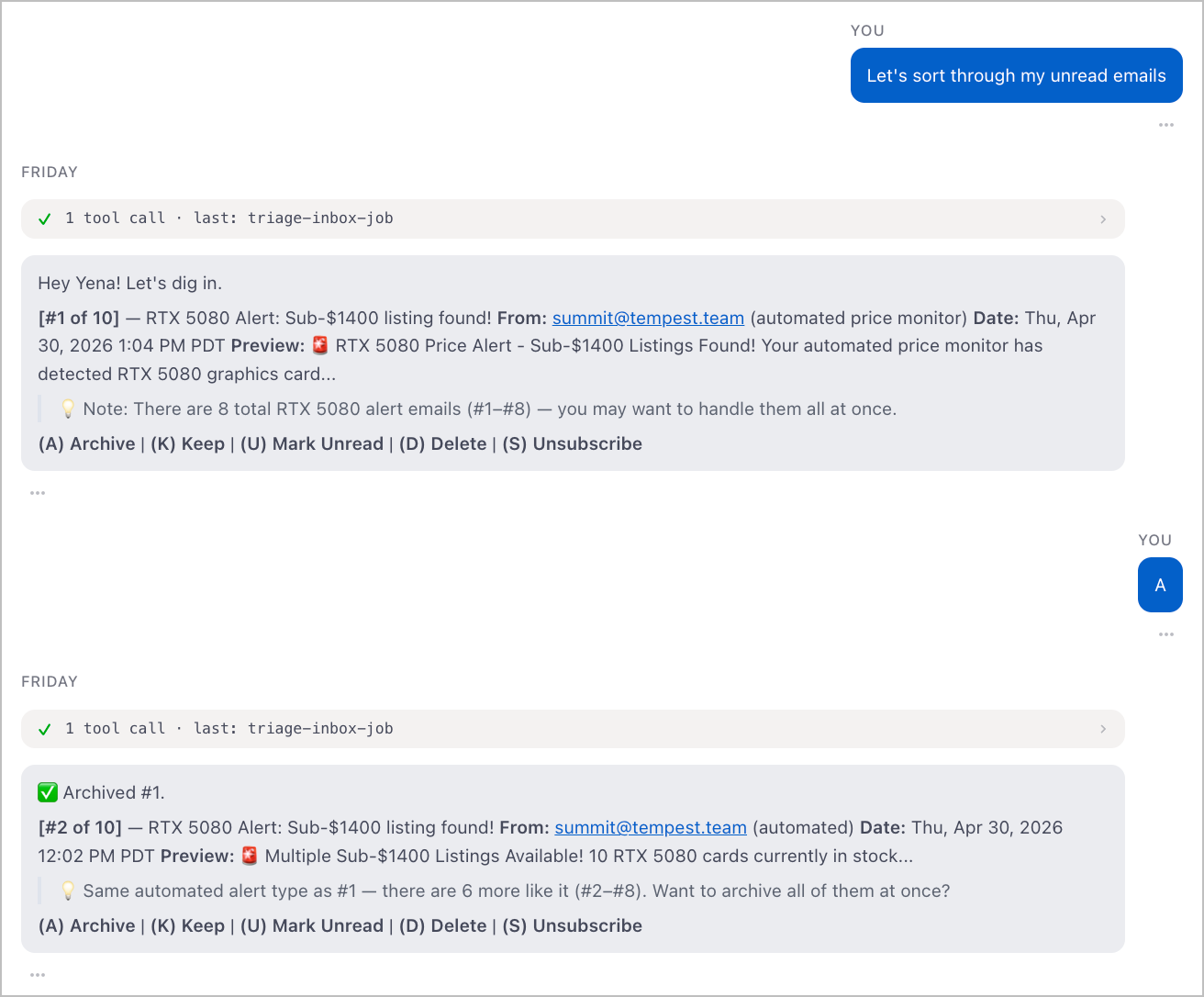
Interactive Triage — pull the 10 most recent unread emails and walk through them one at a time. For each email you get a summary card and five actions:
- (A) Archive — removes the email from your inbox
- (K) Keep — leaves it untouched, moves to the next
- (U) Mark Unread — re-marks as unread, moves on
- (D) Delete — sends it to trash
- (S) Unsubscribe — surfaces the unsubscribe link and archives the email
After all 10, the workspace saves your triage patterns to the preferences memory store. The next time you triage, it reads those preferences back and suggests the likely action next to each email [suggested].
Autopilot — runs automatically every day at 8am Pacific. Fetches up to 25 unread emails, classifies each with a confidence score (0.0–1.0), and auto-acts on anything at 0.85 or above. Emails below that threshold are left untouched and flagged in the report under "Needs Review." After processing, it writes a markdown report to ~/inbox-zero-reports/report-{YYYY-MM-DD-HH-MM}.md covering every action taken, skipped emails, and any unsubscribe links found.
Setup
1. Download Friday
- Go to hellofriday.ai and download the macOS installer
- Open the DMG and drag Friday to your Applications folder
- Launch Friday and complete the initial setup
2. Import the workspace
- Open Friday and go to Discover Spaces
- Find this workspace and click it
- Click Add Space
3. Connect Gmail
The workspace uses your Gmail account both to read emails and to apply label changes (archive, delete, etc.).
- Go to Integrations in the workspace sidebar
- Find Gmail and click Connect
- Authenticate with the Google account you want to manage
4. Set your email address
Both agents have a placeholder [INSERT EMAIL RECIPIENT HERE] in their prompts that tells them which inbox to operate on.
- Go to Agents > inbox-reviewer, find and replace
[INSERT EMAIL RECIPIENT HERE]with your email address - Go to Agents > inbox-autopilot, do the same
Once those two steps are done, both modes are ready.
How it works
| Component | Role |
|---|---|
inbox-reviewer agent |
LLM agent (Claude Sonnet) that fetches your 10 most recent unreads, presents each with a summary card, applies your chosen action, and saves preference patterns to memory |
inbox-autopilot agent |
LLM agent (Claude Sonnet) that fetches up to 25 unreads, scores each with a confidence level, auto-acts on anything ≥ 0.85, and writes a markdown report |
triage-inbox-job |
Single-state FSM that triggers inbox-reviewer on the triage-inbox signal |
autopilot-inbox-job |
Single-state FSM that triggers inbox-autopilot on the autopilot-inbox signal |
triage-inbox signal |
HTTP signal — trigger manually from the workspace to start a triage session |
autopilot-inbox signal |
Schedule signal firing at 0 8 * * * (8am Pacific, every day) |
google-gmail MCP server |
Provides search_gmail_messages, get_gmail_messages_content_batch, get_gmail_message_content, and modify_gmail_message_labels tools |
The autopilot-inbox schedule fires daily at 8am, starting the autopilot-inbox-job FSM. That invokes the inbox-autopilot agent, which classifies your inbox, acts, and writes the report. Interactive triage works the same way but triggered manually — you fire triage-inbox, which starts triage-inbox-job and invokes inbox-reviewer for a live back-and-forth in this chat.
